Quick start
Configure one category to see how Category Merchandiser orders products on your storefront.
Configure a category
-
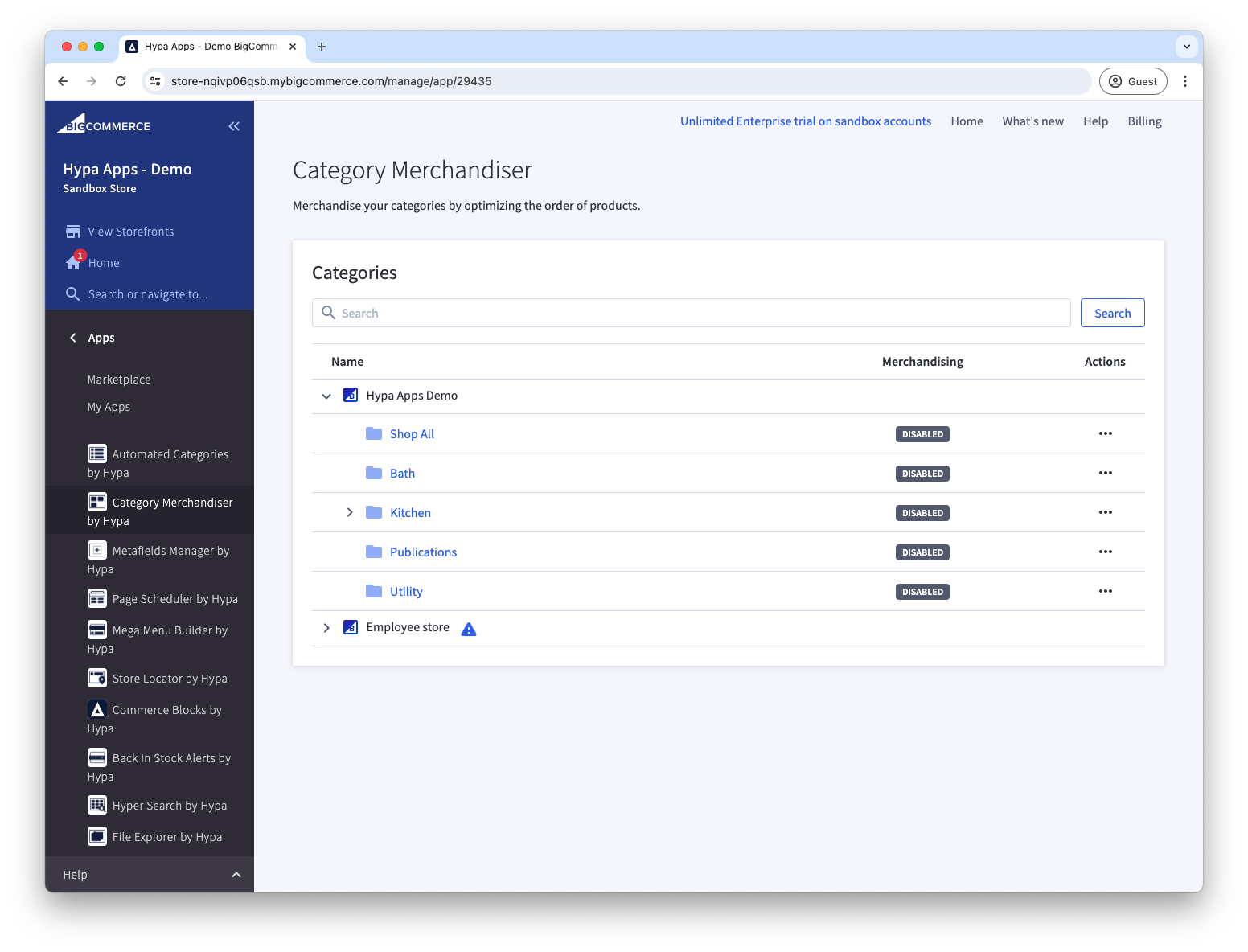
Open Category Merchandiser and select a category.
-
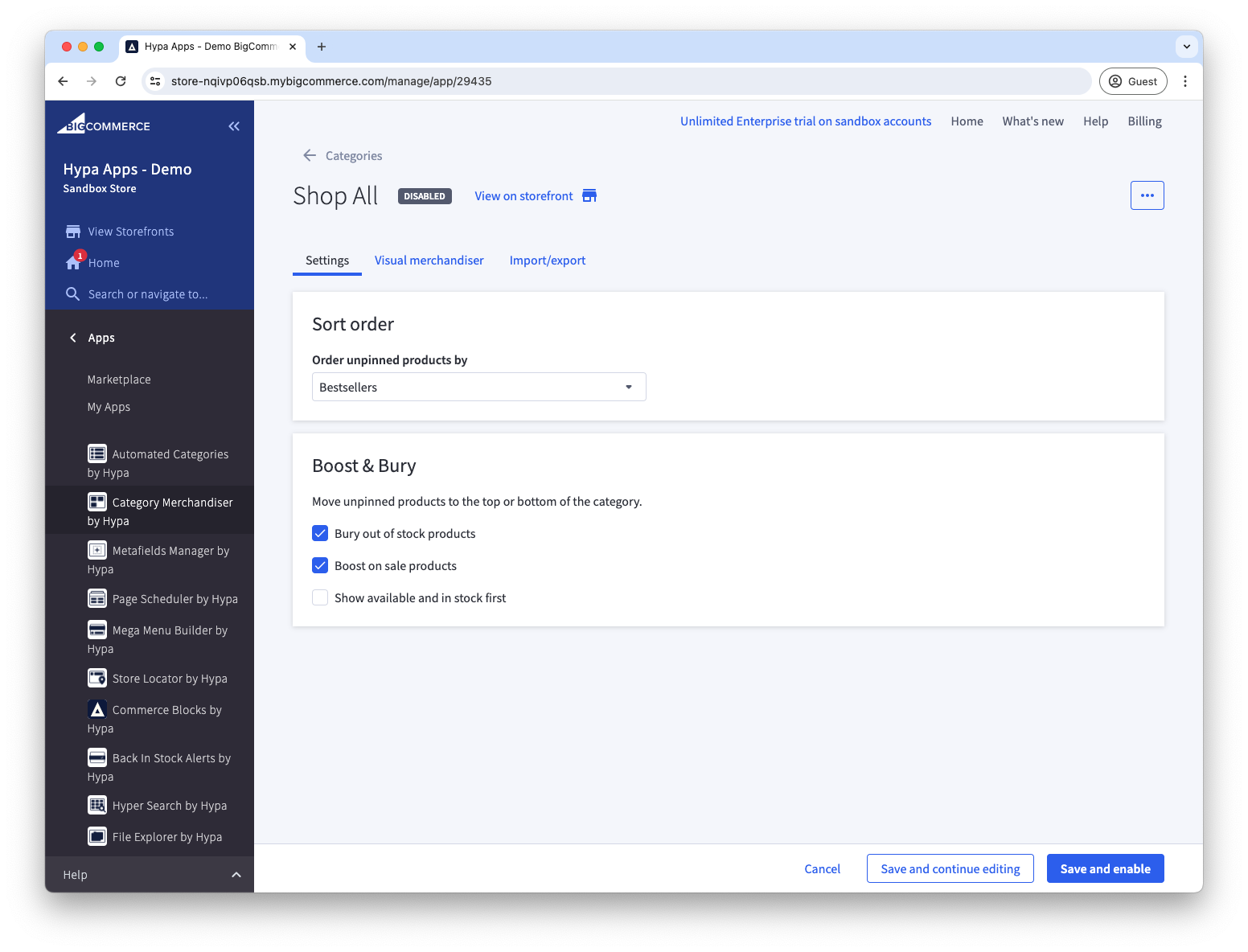
On the Settings tab, use Order unpinned products by to choose the base order:
- Product Sort Order (low to high) — uses each product's Sort Order value.
- Bestsellers — uses the total quantity sold over the life of the store.
- New — shows the newest products first.
- Average review (high to low) — places products without reviews last.
- Stock available (high to low).
- Price (low to high).
- Price (high to low).
-
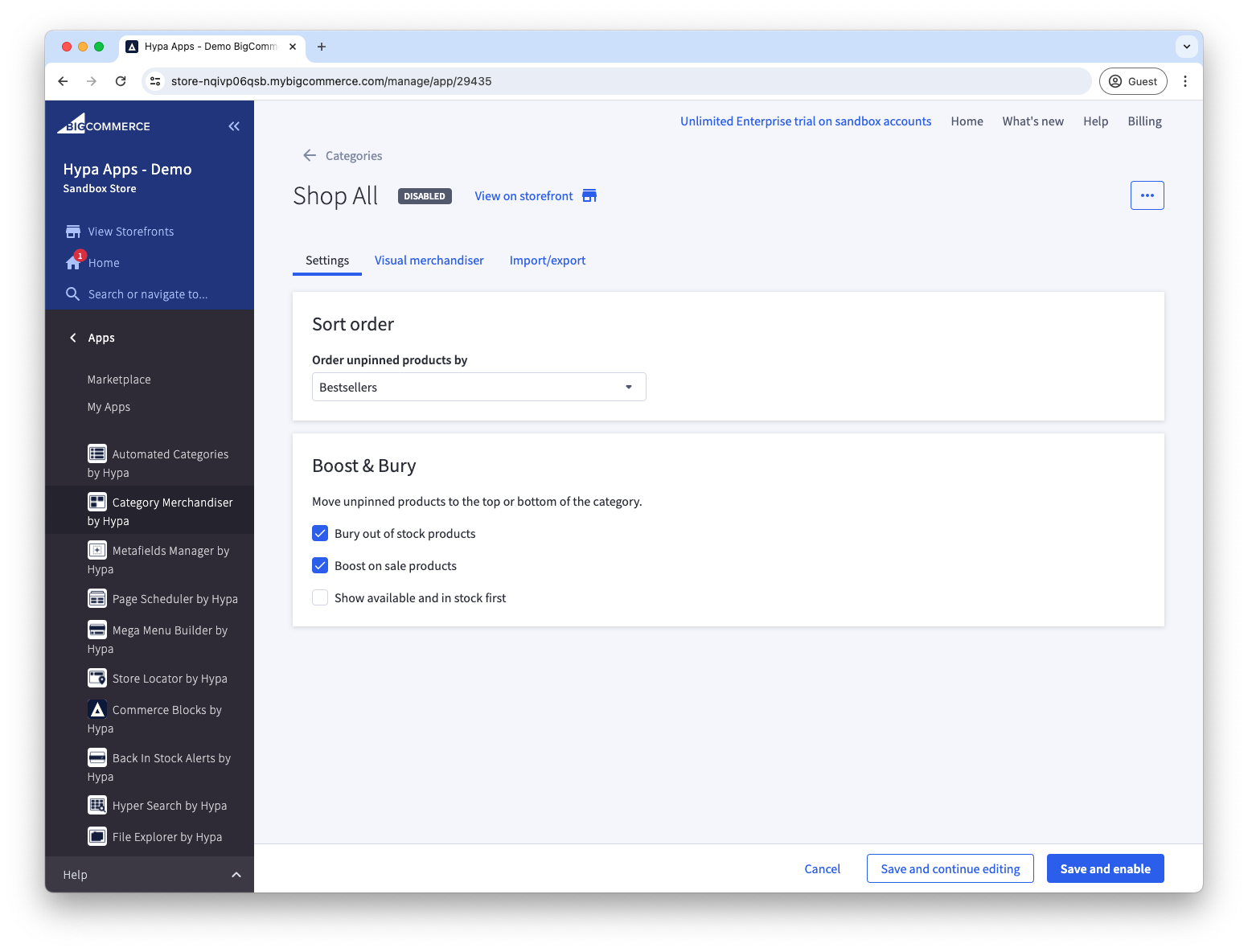
Optionally enable rules in Boost & bury. For example, you can move out-of-stock products to the end of the category. See Configure Boost & bury rules for the effect of each rule.
-
Choose Save and enable. If merchandising is already enabled, the button is labelled Save.
Category Merchandiser processes the category in the background. The success message confirms that processing has started; allow a few minutes for the new order to appear on the storefront.
Category Merchandiser writes its result to BigCommerce's Featured Items order. Set the category's default product sort to Featured Items so shoppers see the merchandised order automatically.
Pin priority products
Pinned products let you choose which items appear first, ahead of the base sort order.
-
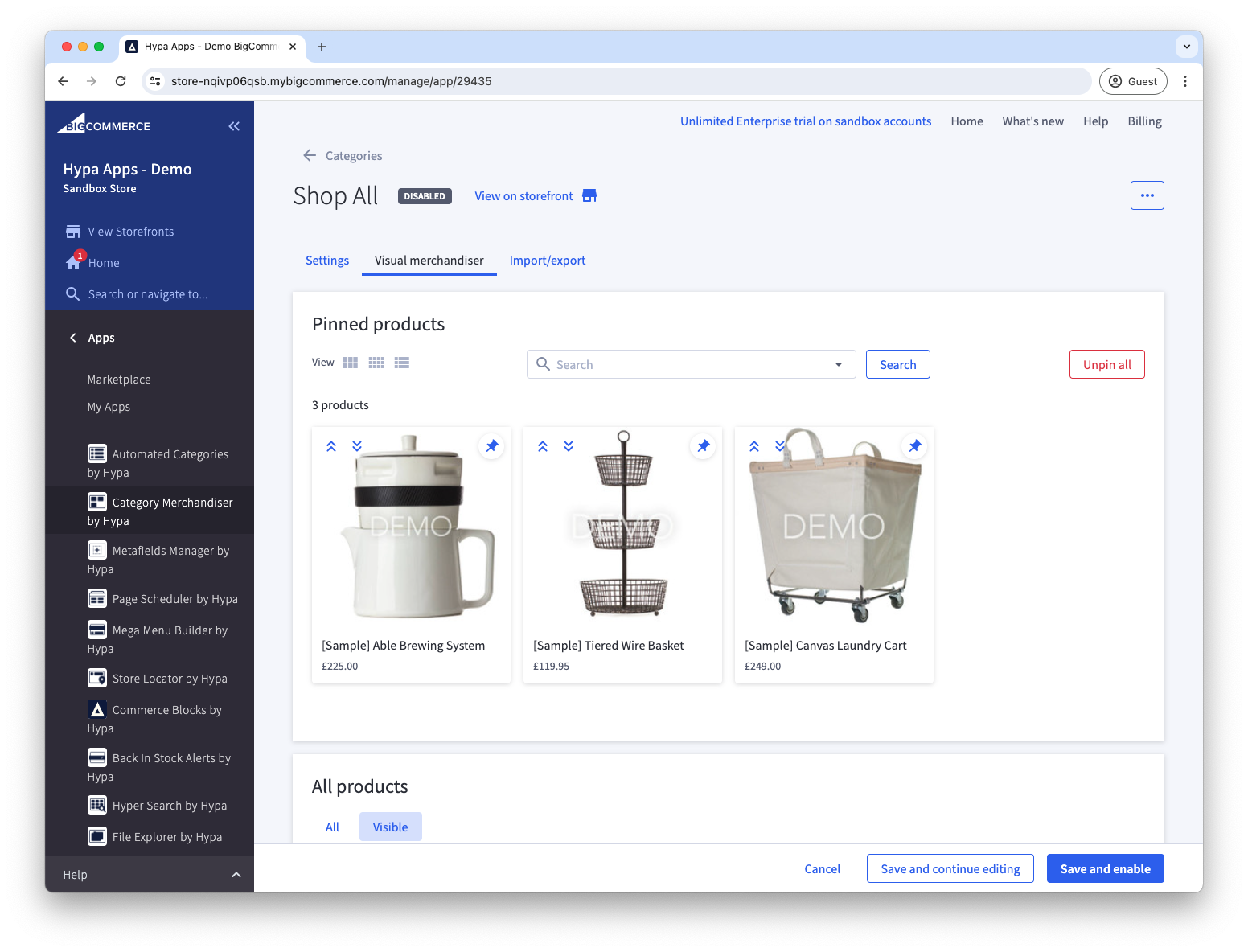
Open the Visual merchandiser tab.
-
Find products with the search field or the All products table, then use the pin control to add them to Pinned products.
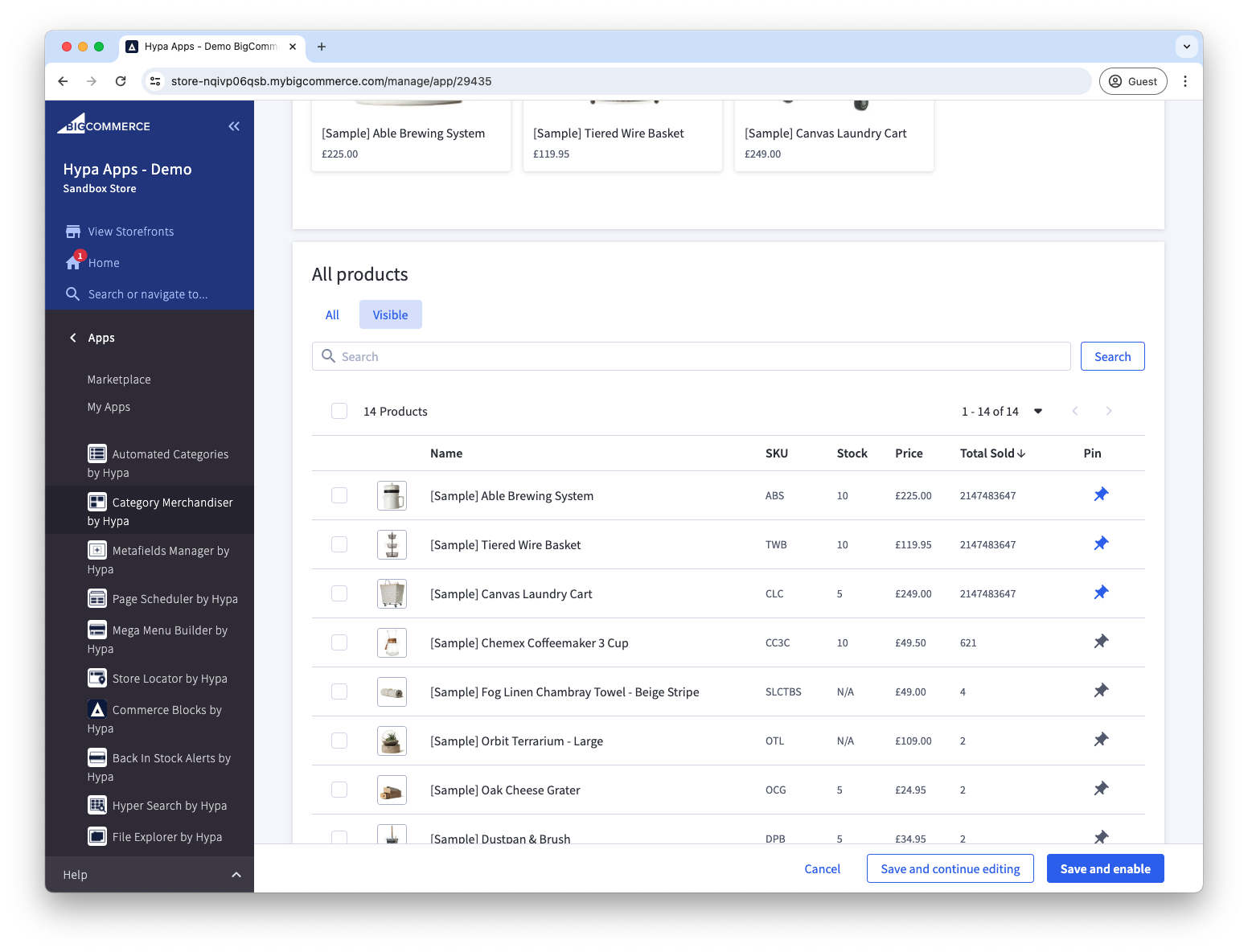
-
Drag the pinned products into the order you want.
-
Choose Save or Save and enable.
Pinned products normally remain above automatically ordered products. The Allow pinned products to be buried rule is the exception: when it is enabled, pinned products that are out of stock can move down the category.
If the storefront has not updated after five minutes, follow the checks in FAQs.