Visual Merchandiser
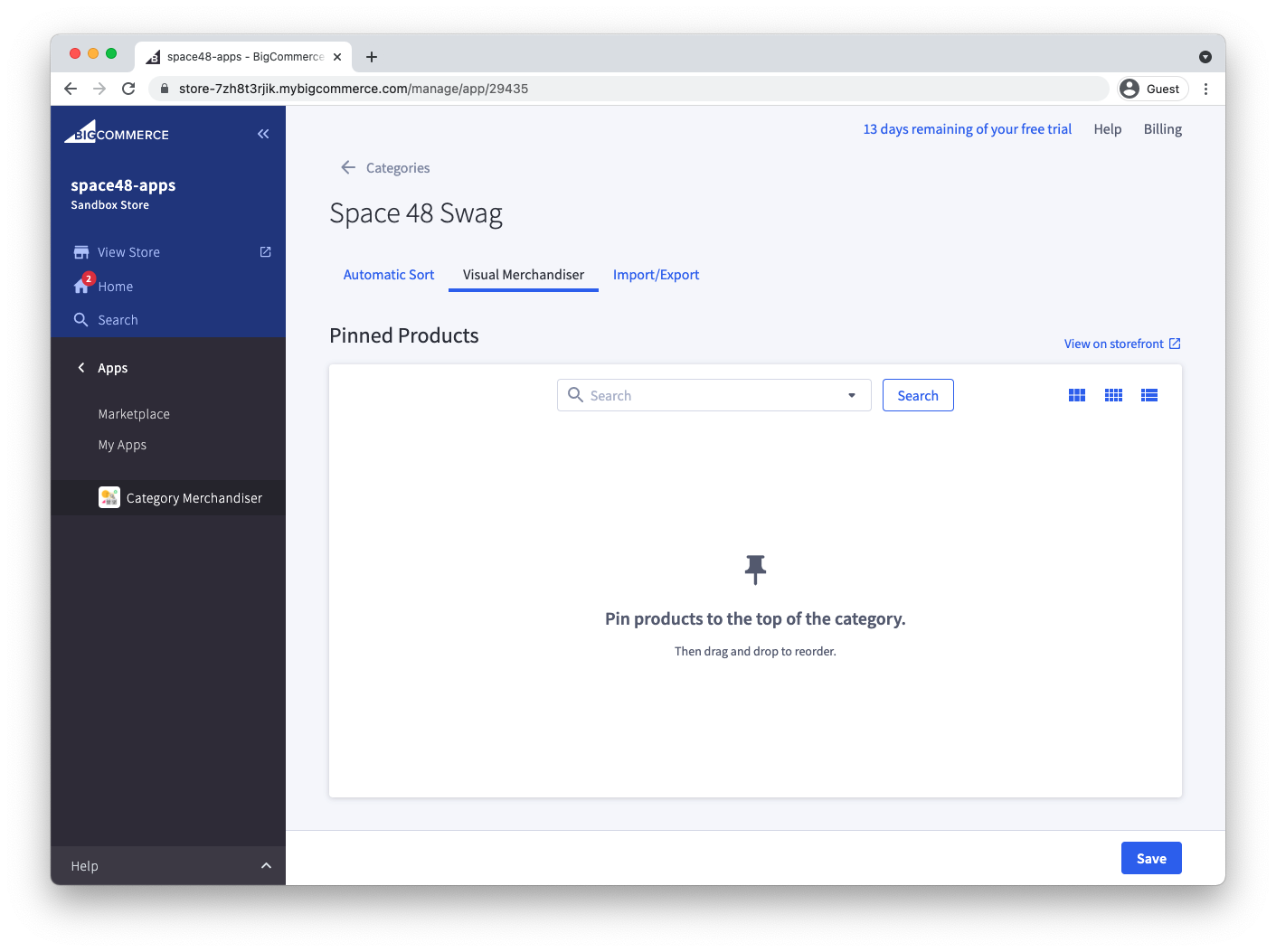
Use the Visual merchandiser tab to place selected products at the top of a category in a specific order.
You can prepare pinned products while merchandising is disabled, but the storefront will not change until you enable merchandising for the category.
Pin products
-
Open a category and select Visual merchandiser.
-
Find a product by name or SKU in the search field. Search results only include products assigned to the current category.
-
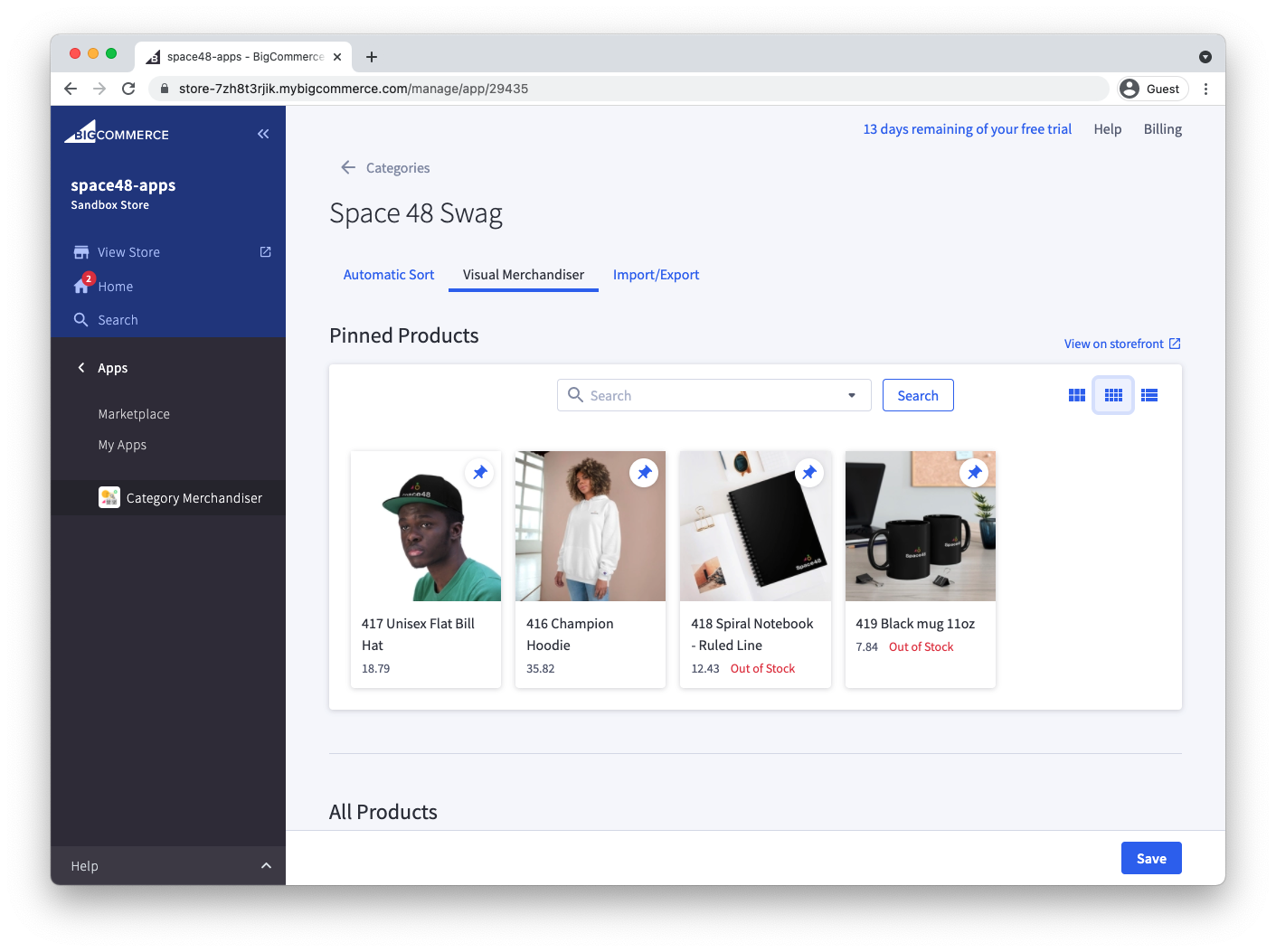
Select the pin icon to add the product to Pinned products.
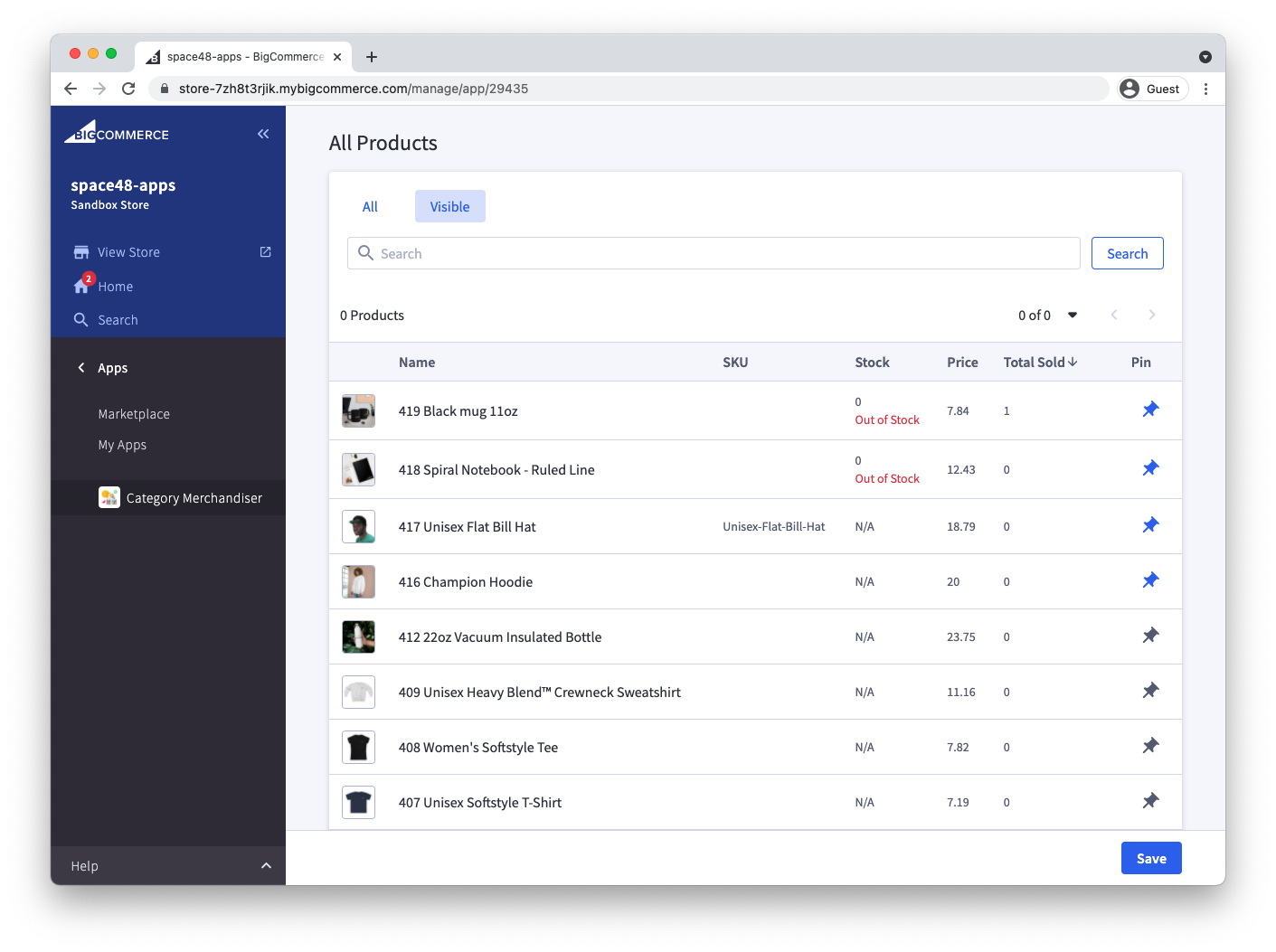
You can also search and sort the All products table, then use the pin icon at the end of a row to pin or unpin an item. The table includes product details such as SKU, stock, price and total sold.
Reorder pinned products
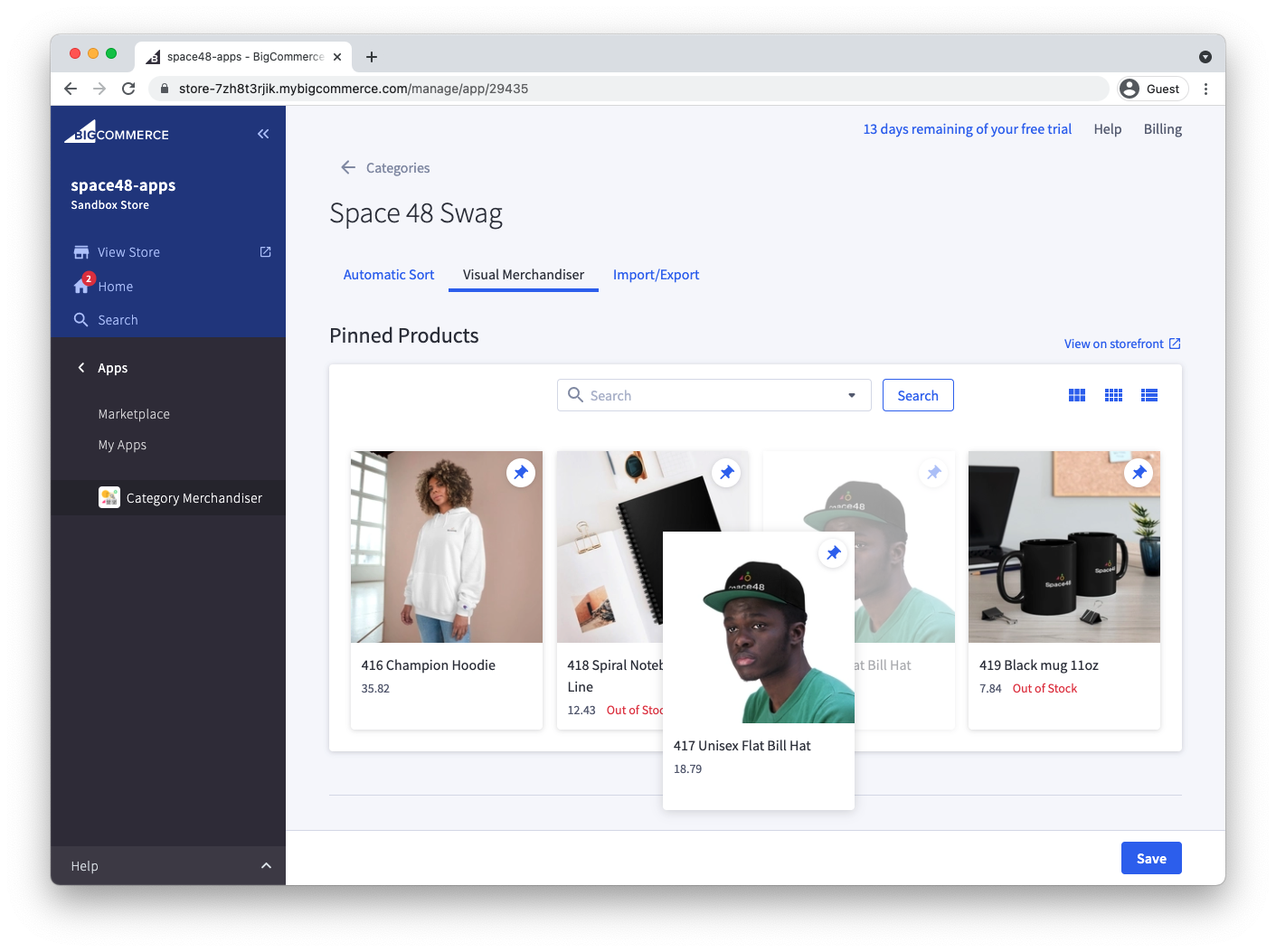
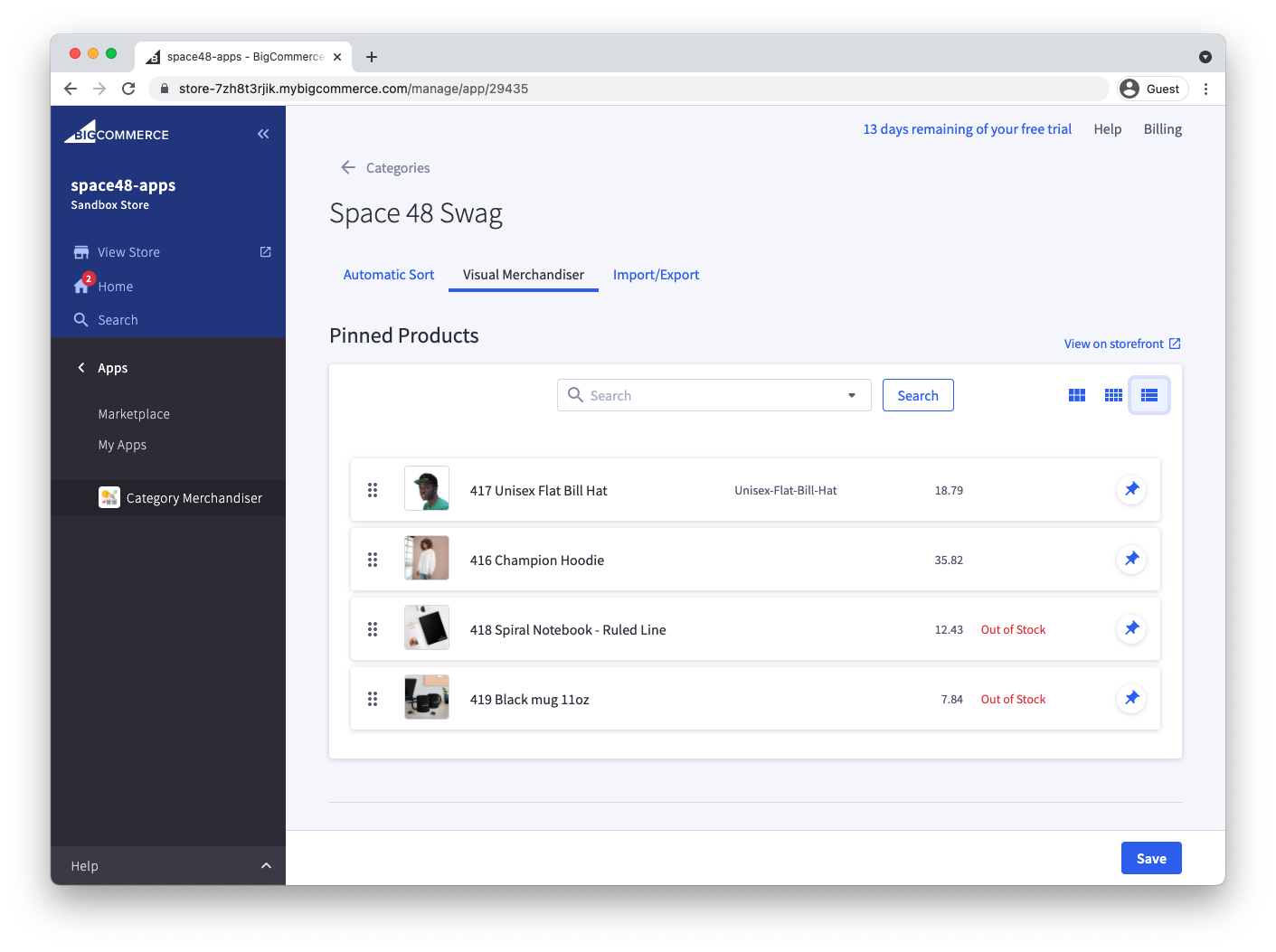
Drag a pinned product to its new position. Keyboard users can focus a product, press Enter, and use the arrow keys to move it.
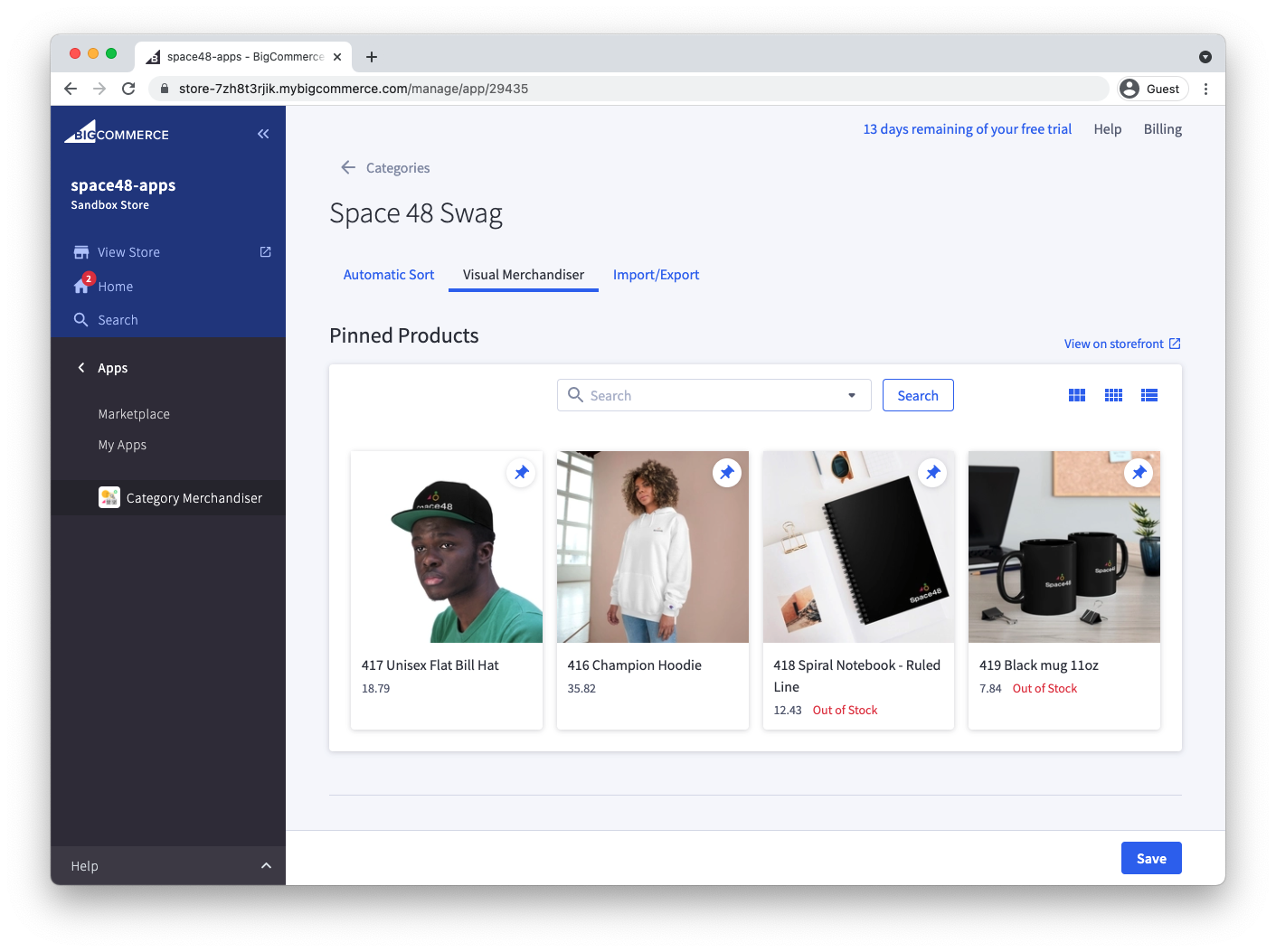
Use the view controls to switch between the large grid, compact grid and list views. Category Merchandiser remembers your choice as you move between categories.
Import or export pinned products
The Import/export tab is available on Premium and Enterprise plans. It lets you manage pinned products and their positions in a CSV file.
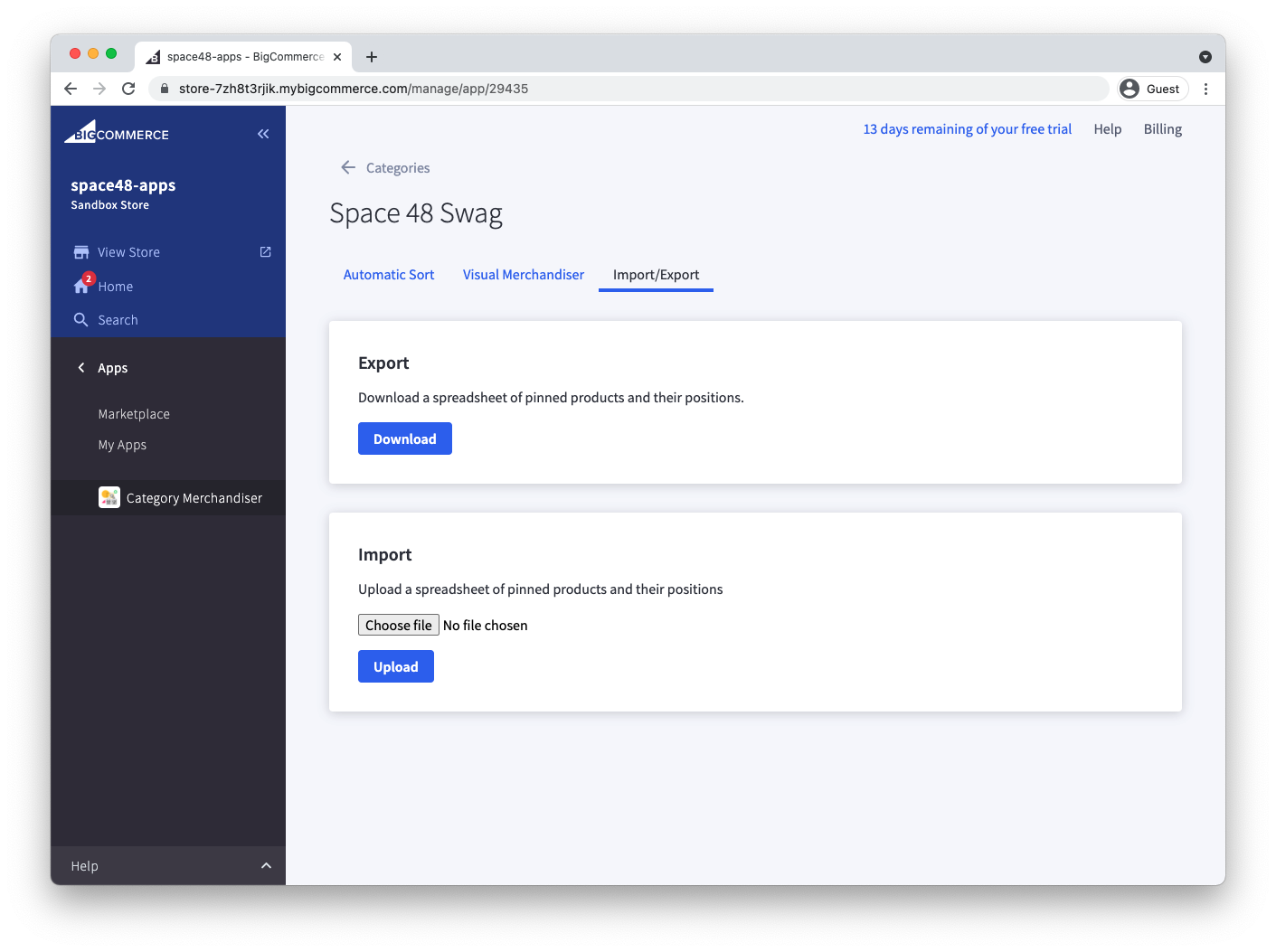
- Choose Download to export the current pinned products.
- To import by BigCommerce product ID, keep the
product_idcolumn. - To match products by SKU instead, populate the
skucolumn and remove theproduct_idcolumn. This is useful when product IDs differ between stores. - Choose a CSV file smaller than 1 MB, then choose Start import.
Save and publish changes
Choose Save, or Save and enable if merchandising is disabled. Processing normally takes a few minutes. The result appears in the storefront's Featured Items order.
To show that result by default, change the category's default product sort order.