Install guide
Category Merchandiser installs directly in BigCommerce. No theme changes or custom code are required.
Install Category Merchandiser
-
Select Category Merchandiser in BigCommerce and choose Install.
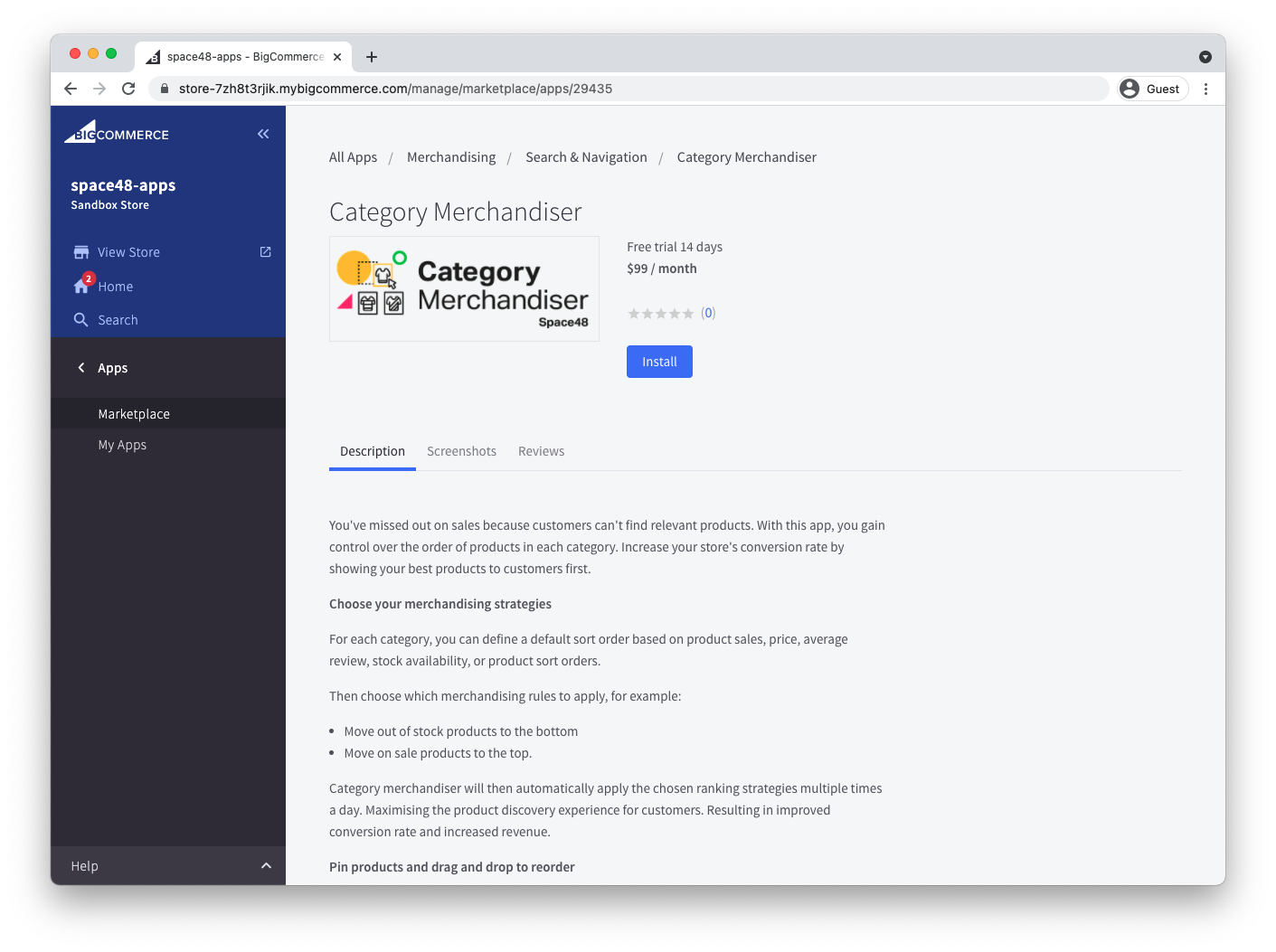
-
Review the requested permissions. Category Merchandiser needs access to store and product information so that it can arrange products within categories.
-
Choose Confirm to grant the permissions and finish the installation.
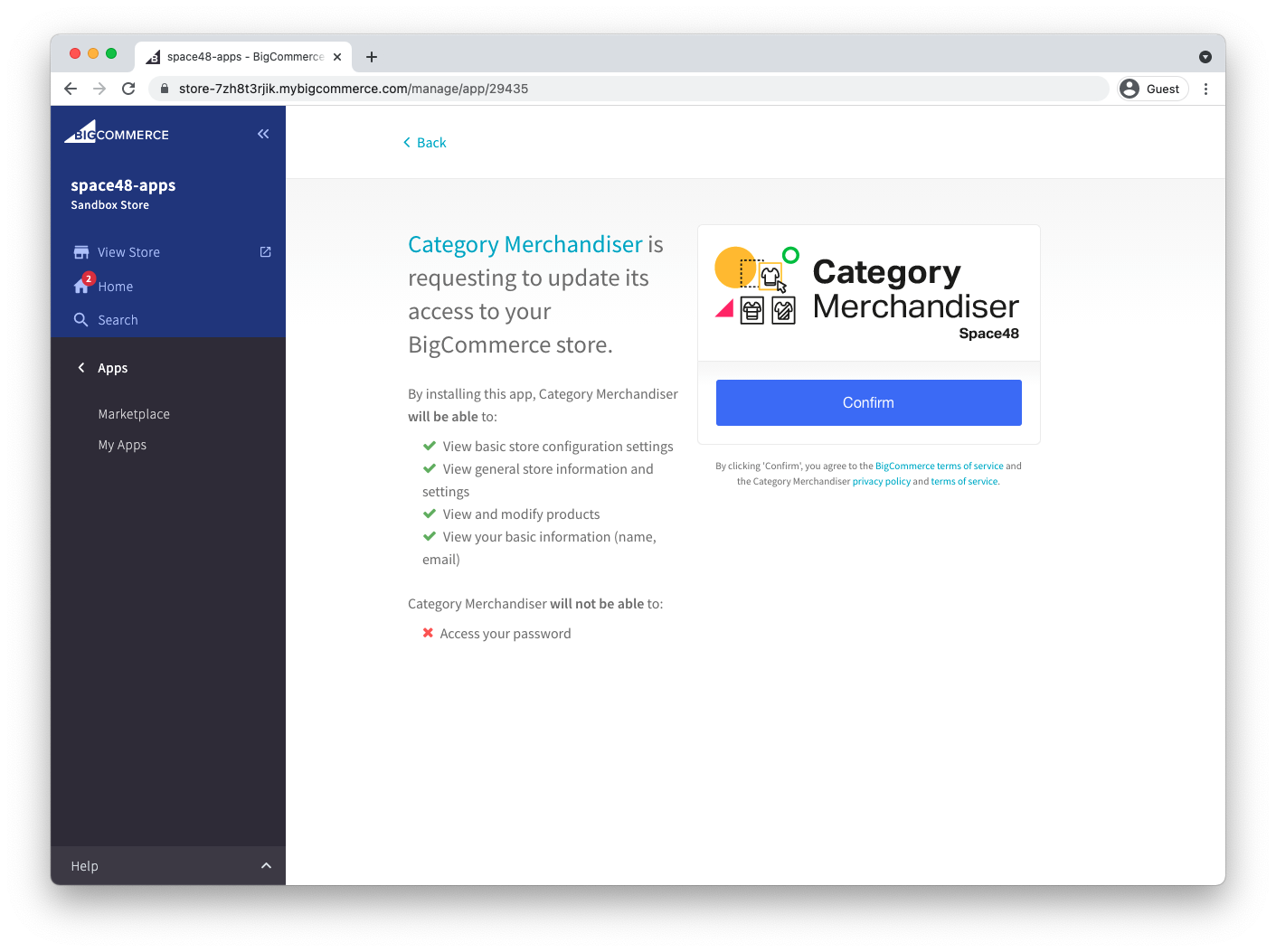
-
On the confirmation screen, choose Get Started. You can also subscribe to product updates before continuing.
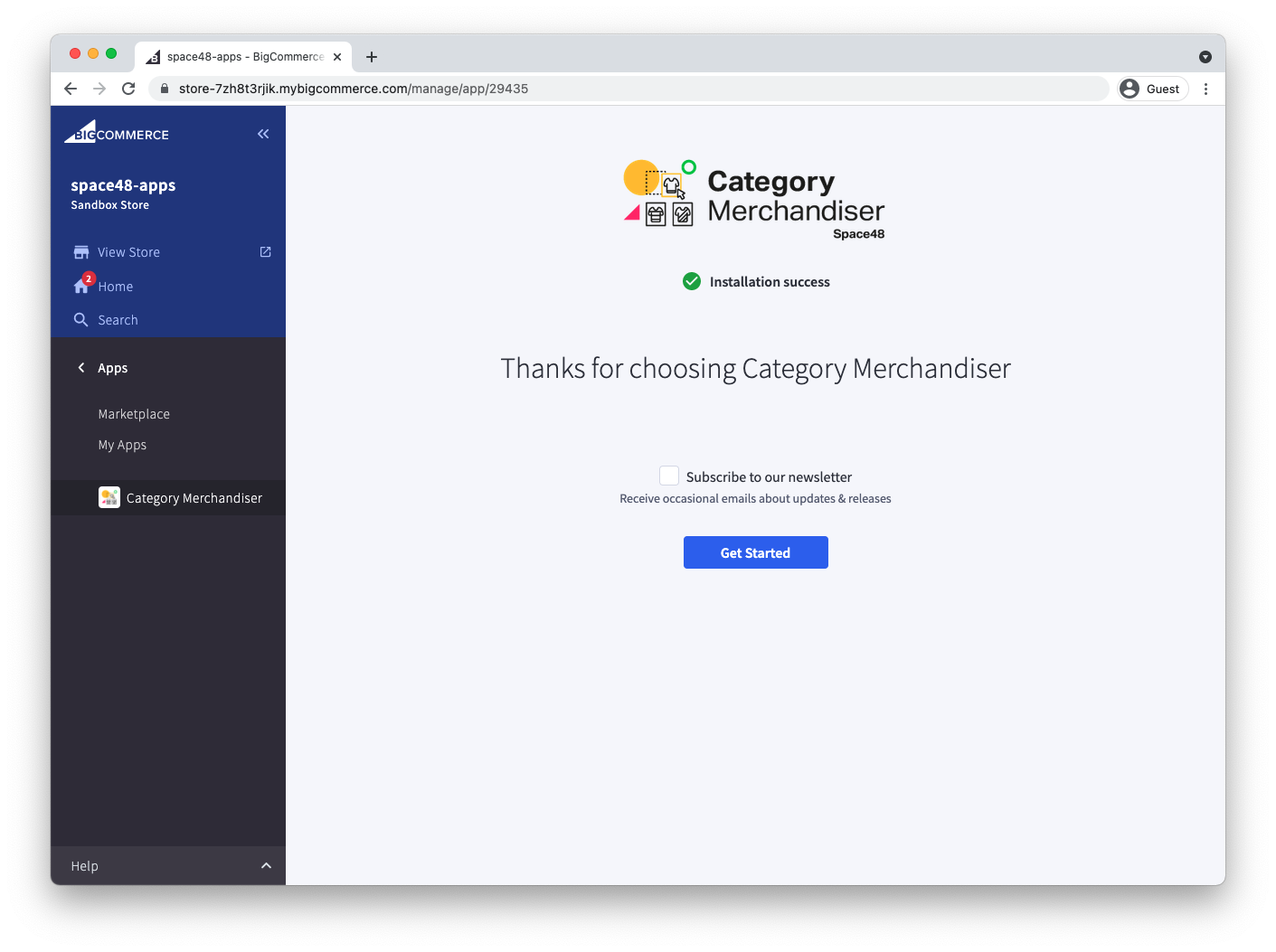
-
Select a category to begin merchandising.
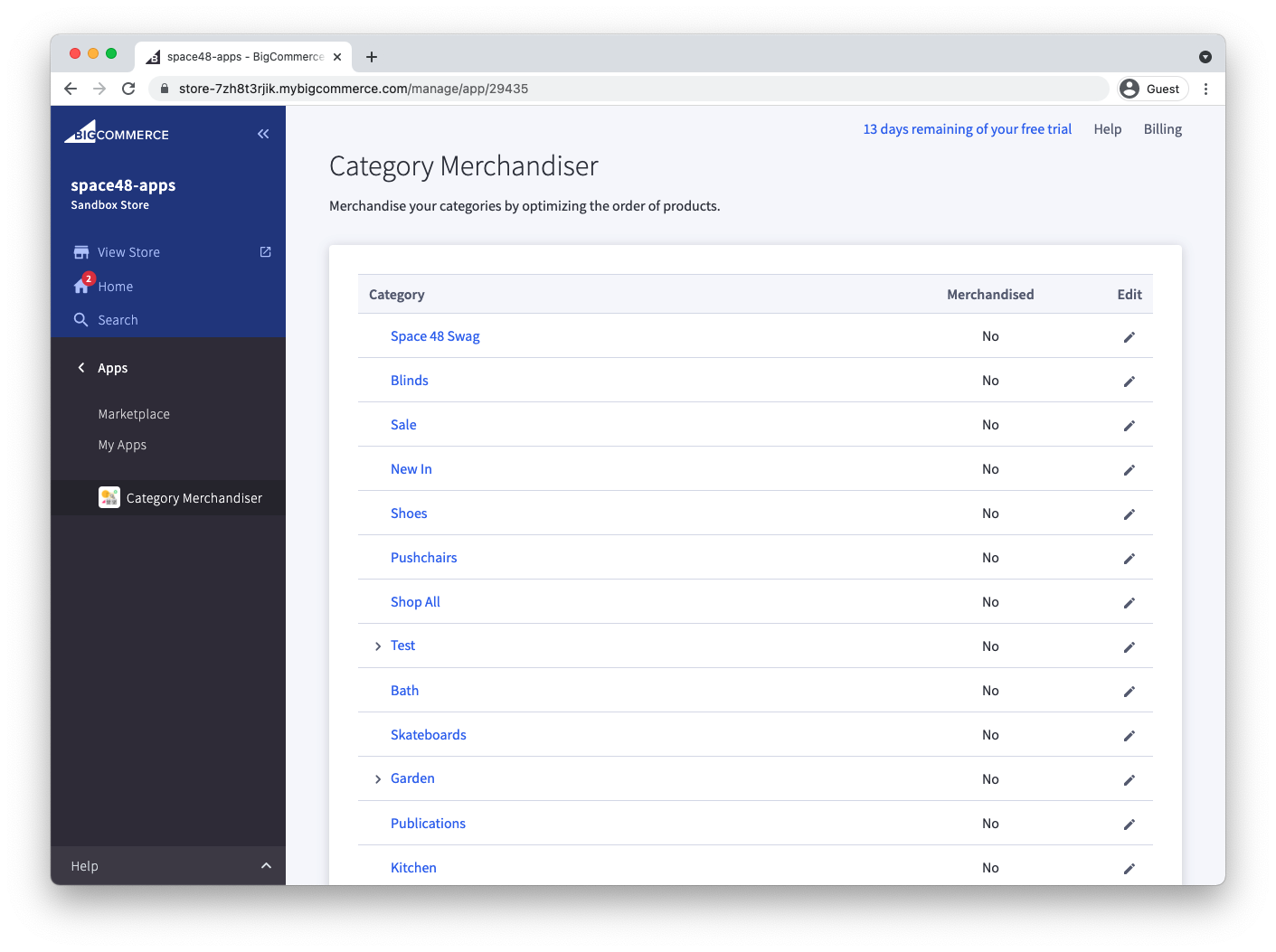
You should now see your store's category list. Follow the quick start to configure your first category.
Troubleshoot access problems
The app logs you out or does not open inside BigCommerce
Private browsing and Safari can prevent BigCommerce apps from opening correctly inside the control panel. Category Merchandiser may offer to open in a separate browser tab when it detects this problem.
Use a regular, non-private window in Chrome, Firefox or Microsoft Edge. If the problem continues, contact us.